Stop flooding the context of your

CtxVault auto-offloads large pastes to a file. Your terminal gets the path, your AI reads it on demand. Nothing changes for every other app.

Download for macOS
macOS 14 (Sonoma) or later · free for 48 hours from first launch, no key and no account.
Version 1.1.10 · new: the 48-hour trial, with the time you have left visible in the menu bar · see what changed
Prefer the terminal? brew tap dms2323/ctxvault brew install --cask ctxvault
48-hour trial 100% local No telemetry One-time €14,99 macOS 14+

Claude Code's [Pasted text #N] still sends the full text.

Claude Code, Codex, and Gemini CLI all collapse large pastes in the input display. That keeps the line readable. It doesn't change what the model receives. Codex's own source names the placeholder "expanded on submit": a display cue, and the full text still goes out the moment you hit enter (codex-rs/tui/src/bottom_pane/chat_composer.rs).

Without CtxVault [Pasted text #1 +312 lines] → full 312 lines still sent to the model
With CtxVault /Users/you/CtxVault/clip-2026-07-16-041.txt → model reads it on demand

How it works

Three small steps, none of them in your way.

  1. Copy: go over your line threshold, anywhere.
  2. File: CtxVault silently writes it to your vault folder.
  3. Path-paste: paste into your terminal and get a path, not the wall of text.
$ /Users/you/CtxVault/clip-2026-07-18-041.txt

One session, one folder, one path.

Collect Mode turns a whole research detour into a single line your agent can open.

  1. Start: press ⌃⌥⌘C. A bar appears at the notch and counts what you copy.
  2. Copy freely: every clip lands in one dated session folder, numbered in the order you copied it.
  3. End: press ⌃⌥⌘C again. The folder itself is on your clipboard, as a path and as a file, ready to paste anywhere.
3 collected
In your vault Collections/2026-08-03-0120/
  01-clip-…txt
  02-clip-…txt
  03-clip-…txt
  README.md
On your clipboard after ending ~/CtxVault/Collections/2026-08-03-0120

Every collect folder carries a README in plain English: what the folder is, when the session ran, and what each file was. Point an agent at the folder and it knows what it is reading.

Built for how you actually work in a terminal.

Three jobs, one goal: keep your AI's context clean.

Offload

Anything too big to paste goes to a file. What lands in your terminal is the path.

  • Notch Island

    See every offload happen live, right at your notch.

  • Smart Terminal Detection

    Only intercepts paste in your CLI tools. Everywhere else stays untouched.

    Terminal, iTerm2, Warp, Ghostty, WezTerm, Kitty, Alacritty, Hyper.

  • Path Templates

    Plain path, @path, or your own format.

  • History Browser

    Search, preview, and re-copy anything you've offloaded.

Collect

A whole session in one folder, and one path at the end.

  • Collect Mode

    Gather a whole session into one folder and hand over a single path when you are done.

    Collect everything, or only what crosses your threshold. Your choice, everything by default.

  • Works Without a Notch

    Mac mini or external display? Same island, as a floating pill: menu bar on Mac, system tray on Windows once it ships.

  • Sizes in Steps

    Card height, panel width and panel height run on a ladder. Your card sits on step 6, not on 132 points.

    The mini panel is set in visible lines, one to six, so you pick how much history you see at a glance.

  • Shortcuts Your Way

    Every shortcut is yours to set, with a collision check against the app's own and the common system ones.

    Shown the way macOS shows them: ⌃⌥⌘N, not spelled out.

Protect

What's secret stays out, and clears itself on its own.

  • Secrets Mode

    Switch it on and the next clips never touch your history.

  • Auto-Cleanup

    Old clips vanish on their own; set the retention window once.

  • Secure Overwrite

    Files are securely overwritten and gone after 30 minutes.

  • Deleted After Restart

    If the Mac restarts in between, anything recognised as a credential is deleted on the next launch.

Recall

Everything you offloaded stays one keystroke away.

  • Mini Panel

    ⌃⌥⌘N brings up your last clips with line counts and types, each with its own copy button.

  • All Paths

    One button hands over every path in the panel at once, for when your agent needs the whole set.

  • Pause

    Stop watching the clipboard for a minute, five, or until you switch it back on.

  • Open History

    The full browser, search and preview included, from the same panel.

What it actually looks like.

Screenshots straight out of version 1.1.7, nothing staged.
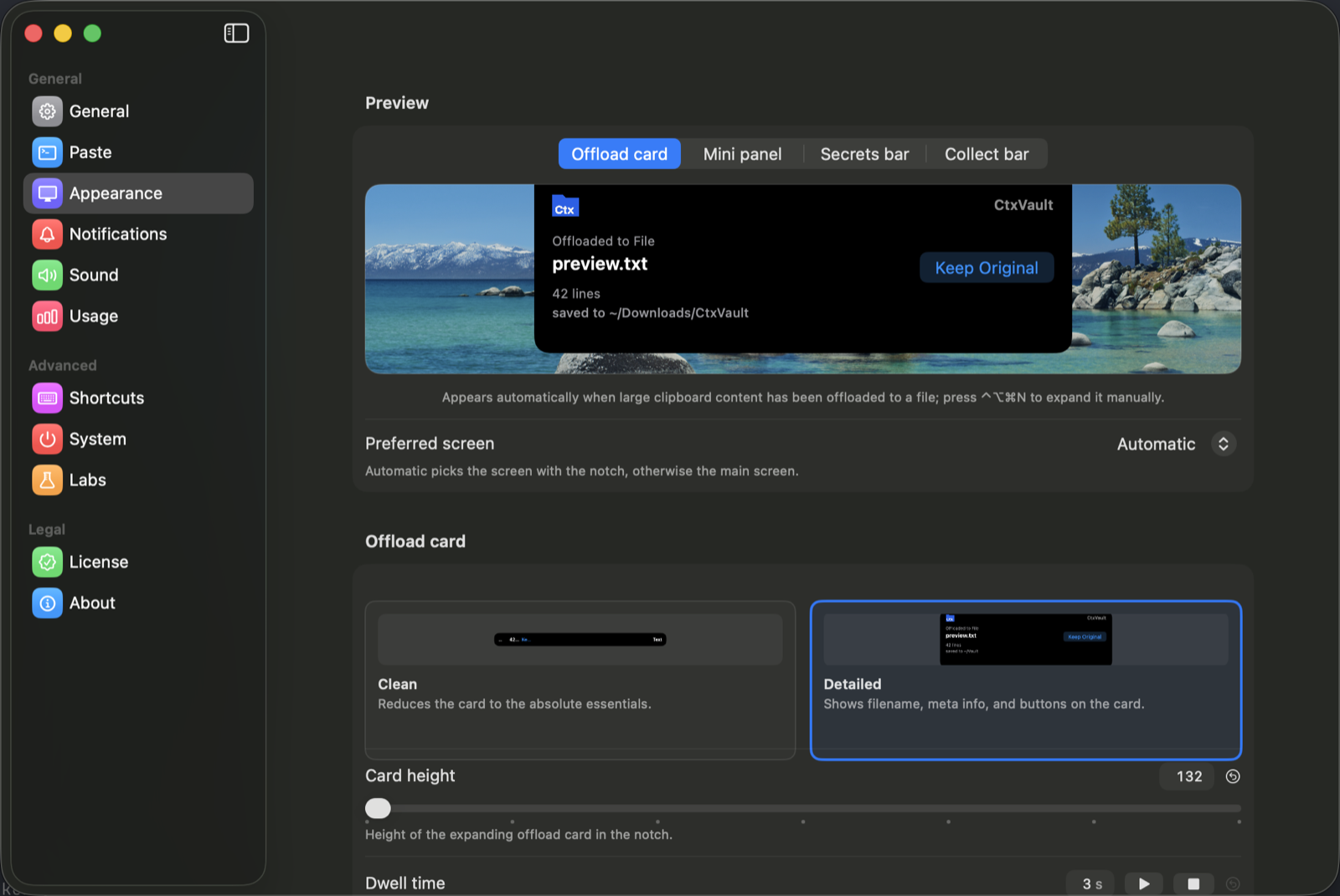
CtxVault Settings, Appearance: a live preview of the notch card reading "Offloaded to File" above preview.txt, 42 lines, saved to ~/Downloads/CtxVault, with a Keep Original button.
Every setting has a live preview. You see the notch card change while you drag the slider, not after you close the window.
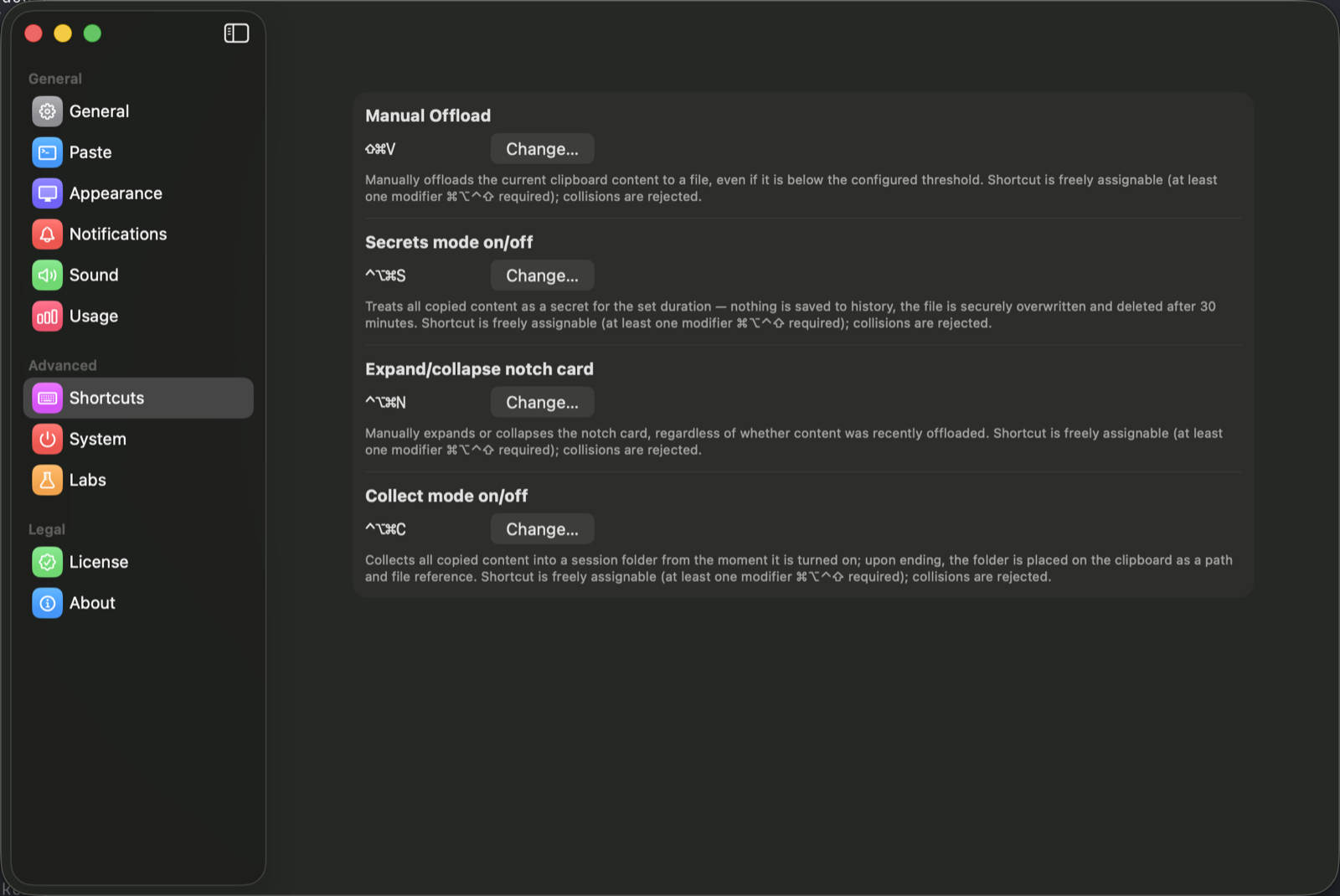
CtxVault Settings, Shortcuts: four rows (Manual Offload, Secrets mode, Expand/collapse notch card, Collect mode), each with its key combination, a Change button, and a sentence explaining what the function does.
Four shortcuts, all yours to set. Each row says what the function does, and a combination already taken is refused instead of silently swallowed.
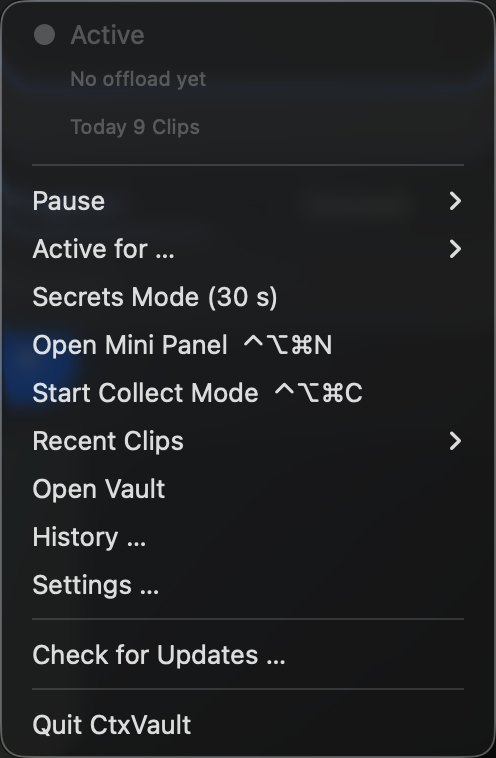
The CtxVault menu bar menu: Secrets Mode, Open Mini Panel with the shortcut ⌃⌥⌘N, Start Collect Mode with ⌃⌥⌘C, Recent Clips, Open Vault, History, Settings.
The menu bar shows the shortcuts you set, written the way macOS writes them.
€14,99 once · lifetime · one device · move anytime
€14,99 / lifetime

Intro price ends 15 November 2026

One-time payment · VAT included for EU/UK customers · sales tax added at checkout elsewhere
  • Lifetime license, 1 device
  • One-time purchase, no subscription
  • Free automatic updates for your version
Buy via Polar
Checkout & license key handled by Polar.sh
Not sure yet? Download it and use everything for 48 hours first, no key required.
Already purchased? Download CtxVault for macOS and activate it with the license key from your confirmation email.
Windows support coming soon: one purchase, both platforms.
Supported terminals: Terminal · iTerm2 · Warp · Ghostty · WezTerm · Kitty · Alacritty · Hyper

Frequently asked questions

Yes. CtxVault runs in full for 48 hours from the moment you first launch it, with no key, no account and no sign-up. When the two days are up it locks the same way an unlicensed copy does, and the files you already offloaded stay in your vault folder. A license always takes precedence over the trial, so buying at any point during the two days simply unlocks it for good.
Your license covers one active device at a time. Deactivate it in the app before you switch, then activate on the new machine (Mac today, Windows once it ships), no extra purchase.
Yes. Right-click / menu-bar paste doesn't go through the same event hook as Cmd+V, so it inserts the original full text. Use the override hotkey if you deliberately want the full text via Cmd+V instead.
macOS's Secure Input mode blocks all system-wide paste interception while a password field is focused. CtxVault detects this, pauses automatically, shows the status in the menu bar, and resumes on its own.
CtxVault also recognizes common credential formats (OpenAI, GitHub, AWS, Slack and Google keys, JWTs, PEM key blocks, and .env lines or export assignments ending in _KEY/_TOKEN/_SECRET/_PASSWORD) and routes them to the vault instead of your typed input, with a shorter auto-clear window than a normal offload. Only the file path lands in your terminal; double-tap pastes the real value if you need it there. That keeps the raw key out of what you type, not out of the AI's context: the model still reads it once it uses the key. Browser and login fields still get the real key, since path-injection only applies in the terminal. On by default, and you can turn it off in Settings; it only catches known formats, not a custom token or a bare secret without its matching prefix.
For the moments when one paste is not enough: you gather a log, a config, three files and a stack trace, and your agent needs all of it. Press ⌃⌥⌘C, copy as much as you like, press it again. Everything sits in one dated folder, numbered in the order you copied it, with a README that says what each file was. Ending the session puts that folder on your clipboard, as a path and as a file, so one paste replaces twenty. By default it collects everything you copy while it runs, including small clips; you can restrict it to what crosses your normal threshold in Settings. Anything recognised as a credential never enters a collect folder.
Not by default. VS Code's integrated terminal and its editor panes aren't distinguishable from the outside, so VS Code isn't in the terminal whitelist out of the box (enabling it would risk intercepting paste into your actual source files).
The only network calls are for licensing: activation, deactivation, reactivation if you switch devices, and a periodic check-in with Polar (up to every 5 days) to confirm the key's still valid, plus an optional update check you can turn off. No clipboard content, no usage data, no telemetry.
You pick how aggressive offloading should be during setup, choosing between three presets, from "only very large pastes" to a tighter default. Everything stays adjustable afterwards in Settings, by line count or by size in KB, along with the vault folder location and retention window.
CtxVault works at the OS paste level, not per-tool: it doesn't care whether you're running Claude Code, Codex CLI, Gemini CLI, or a plain shell. If your terminal app is on the whitelist, path-paste works there.
No. CtxVault here is a macOS menu bar app that offloads large clipboard pastes to local files, sold as a one-time license by lukas josef unternehmungen. Other projects share the name, including a Python package called ctxvault on PyPI and several repositories on GitHub. If you are looking for the macOS clipboard app, you are in the right place.